How the Editor Works
In Wejot, the editor is not the starting point of research. It is a window outside of the conversation that helps you see the current state of your survey.
As the study progresses and the survey takes shape, the editor helps you quickly understand what exists now and what can still be adjusted.
The editor provides two viewing modes:
-
Preview
Shows how the survey will look in real execution. You see the full flow respondents will experience.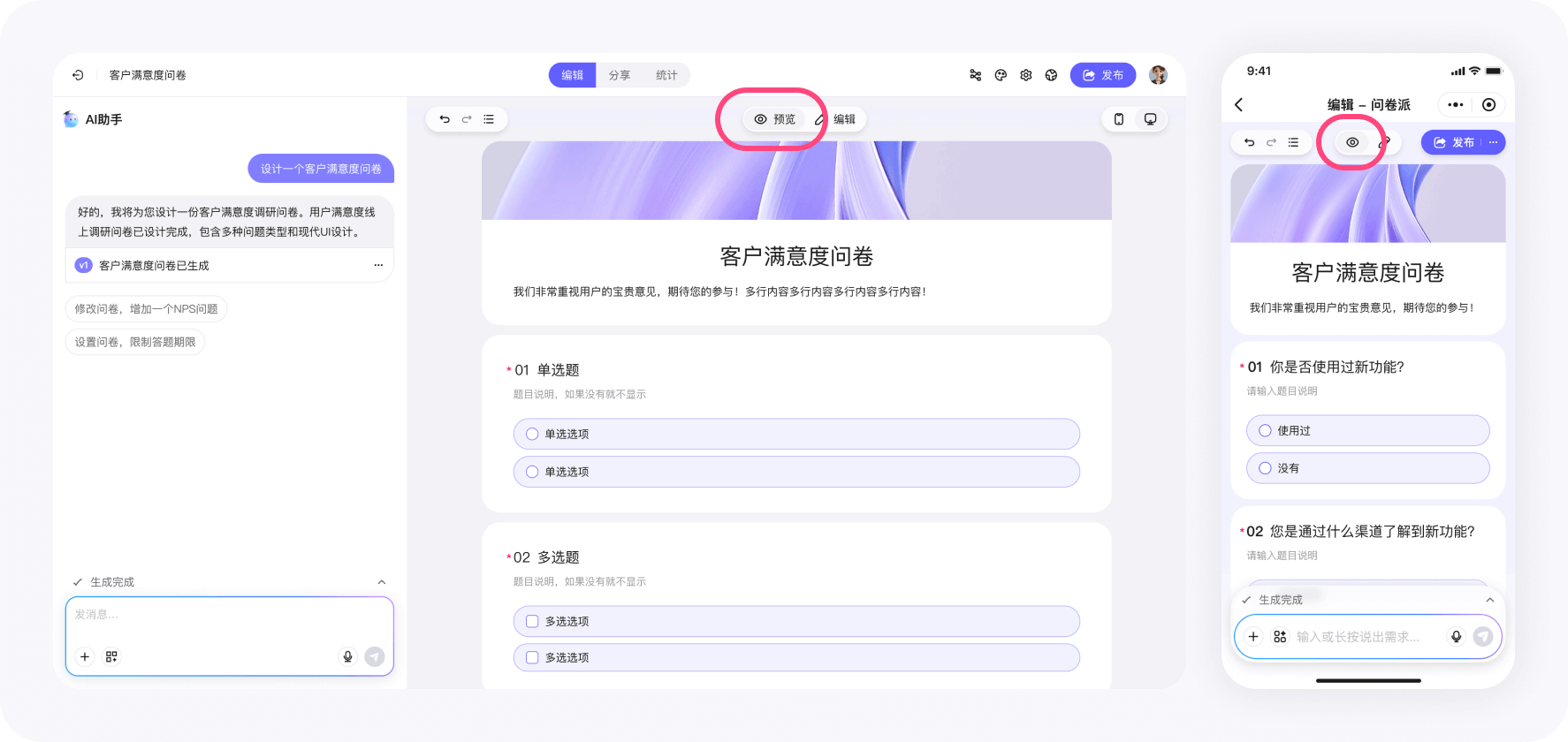
-
Edit
Shows all questions in a complete form. Logic is temporarily not enforced, which is better for reviewing structure and making quick edits.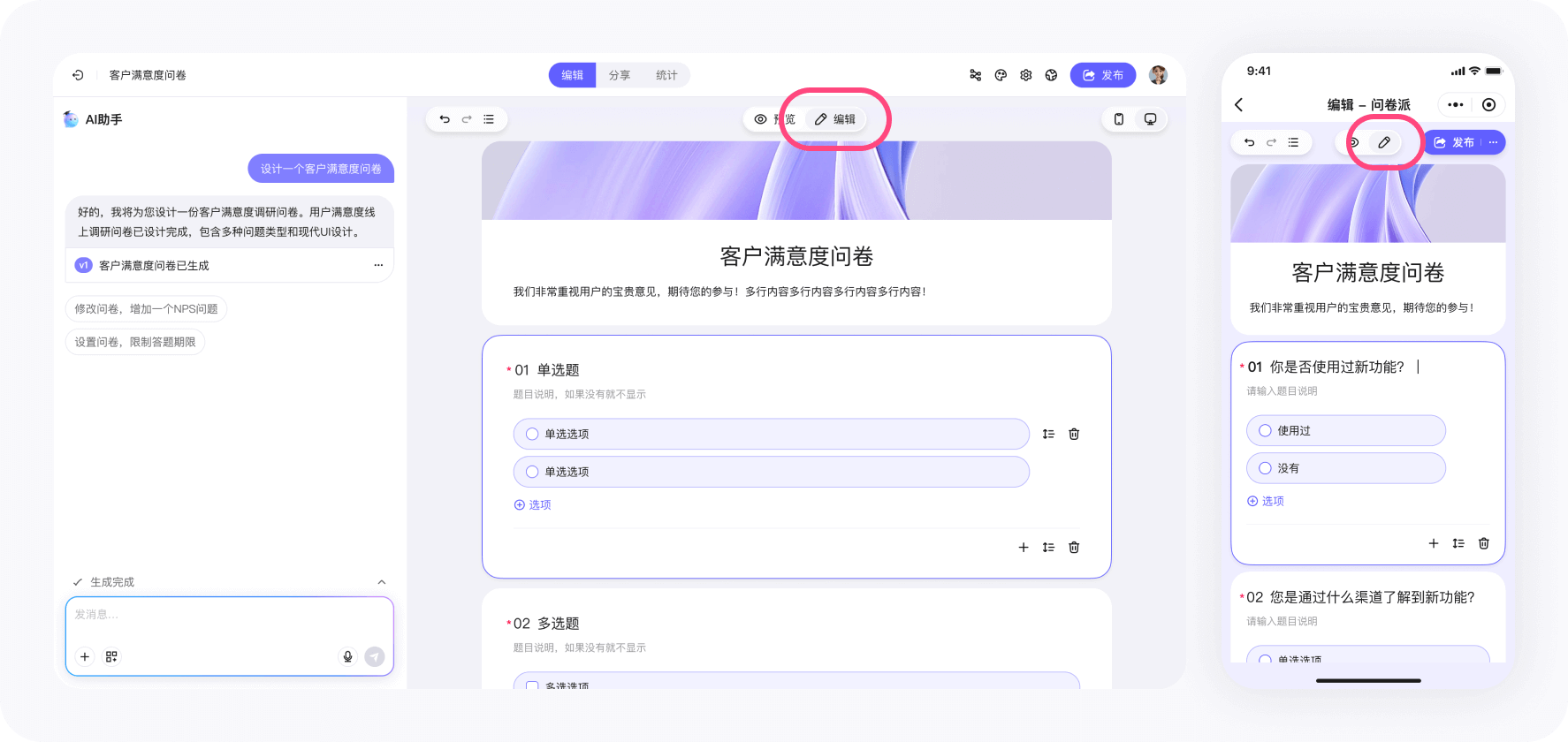
Switch between them to validate that the survey matches your intent.
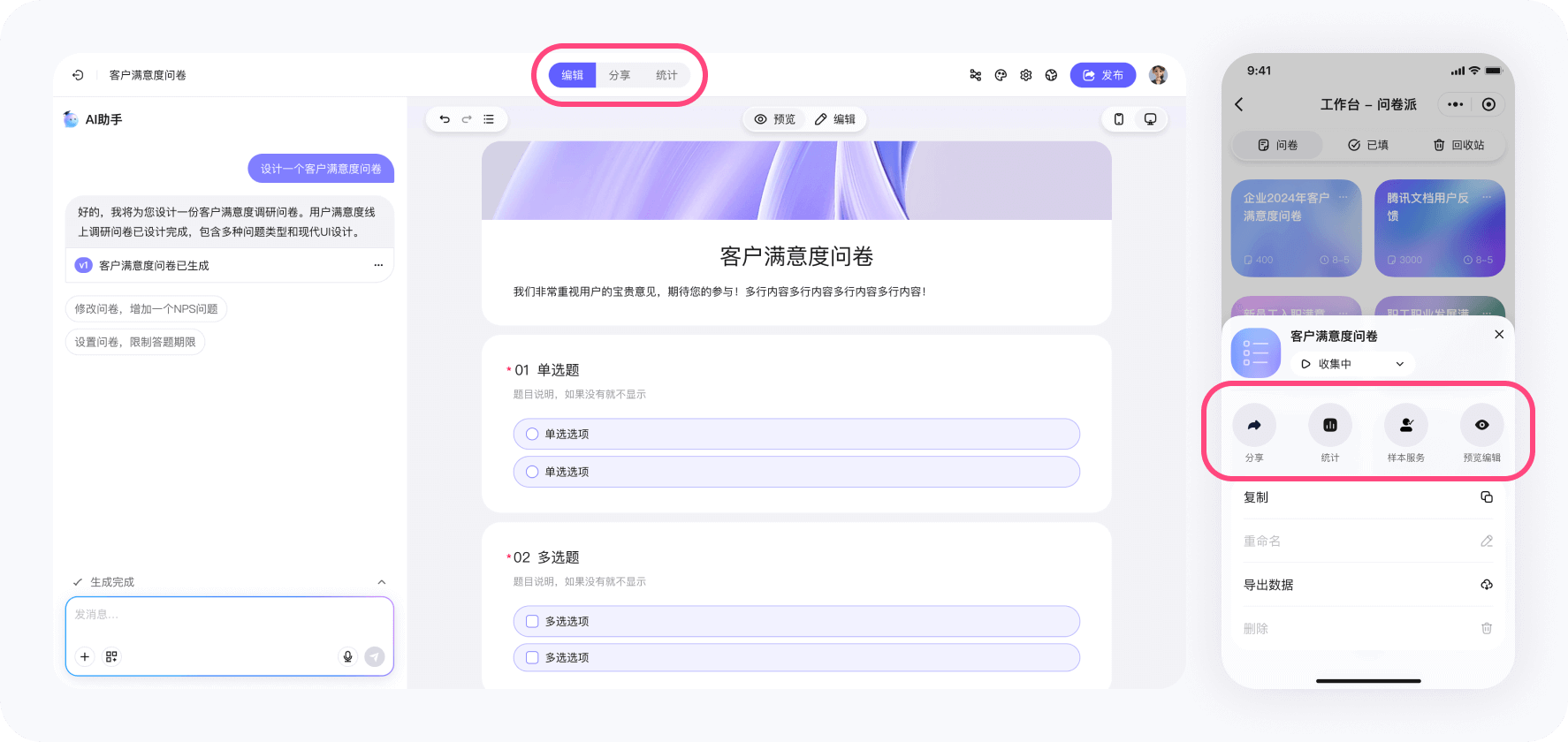
From the editor you can jump across core stages:
- Edit: review survey content
- Share: see how the survey will be published and distributed
- Analytics: after responses arrive, review and analyze results
These are stages of the same workflow—not separate tools.
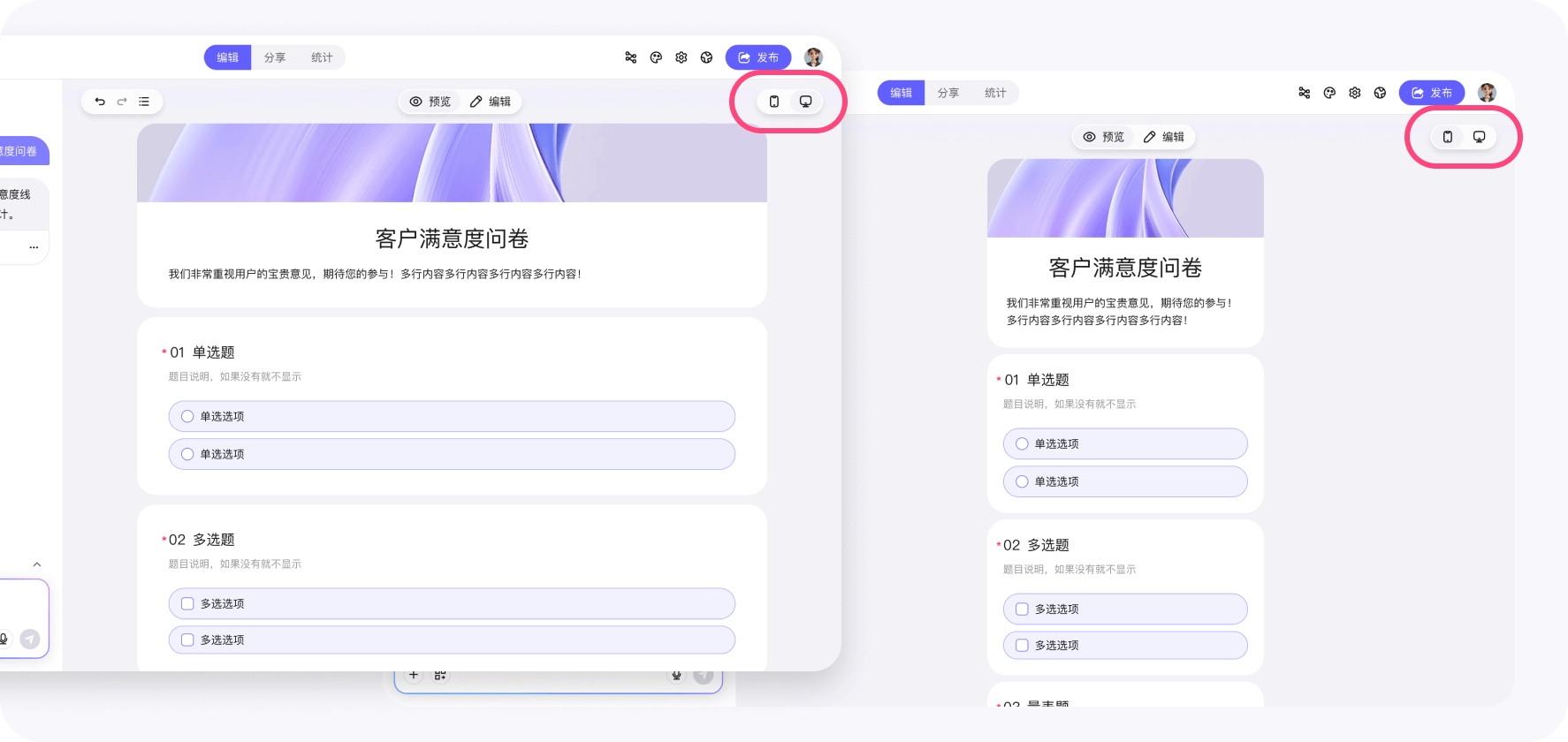
You can toggle between desktop and mobile views. This helps you quickly confirm whether the survey looks natural on both phone and computer.
In the top-right of the editor you will find key configuration entry points:
- Logic: rules that control the flow
- Appearance: styling and theme
- Settings: runtime behavior (limits, identity, etc.)
- Language: editor display language
- Publish & Share: move the survey into real usage
You will typically use them progressively as the study becomes clearer.
![Wejot editor - the key configuration entry points]](/img_surver_editor05.png)
A survey in Wejot is not a pile of scattered settings. It is a set of structured building blocks. Understanding these blocks helps you decide what to adjust and when.
Question types and questions: how you express information needs
Wejot includes common built-in question types, including:
- Single choice
- Multiple choice
- Rating scales
- Matrix rating scales
- Free text
- File upload
These cover most research scenarios.
If built-in types are not enough, you can generate custom question types through conversation. They are typically implemented with HTML, CSS, and scripts for specialized research needs.
Order and pagination: pacing information
Order and pagination directly shape how respondents read and answer:
- Order defines the path of information intake
- Pagination controls rhythm rather than just splitting content
You can adjust order and pagination to fit the research goal.
Title and intro: establish context
The survey title and intro help respondents quickly understand:
- What the survey is about
- Why you are asking
- How long it will take
These are often refined multiple times before publishing.
Completion page copy: the final impression
The completion page confirms submission and affects the final impression of the survey experience.
Below are realistic examples of changes you can request in one sentence.
Reorder questions
Move all personal profile questions to the beginning.Change pagination
Make the survey one question per page.Edit question content
In question 7, remove the duplicated brand options.When using the editor, focus on:
- Whether the structure matches the research goal
- Whether the flow is smooth for respondents
- Whether key questions appear at the right moments
Once these are in place, the survey is usually ready to publish.