Data Collection & Views
This page explains the key steps and best practices for this feature in Wejot.
Once a survey starts collecting responses, you can use the analytics page to view progress, inspect answers, and export data when needed.
The analytics page is not a single view. It provides multiple ways to inspect and operate on the current dataset.
At the top of the analytics page, you can quickly see:
- Response count
- View count
- Completion rate
- Average completion time
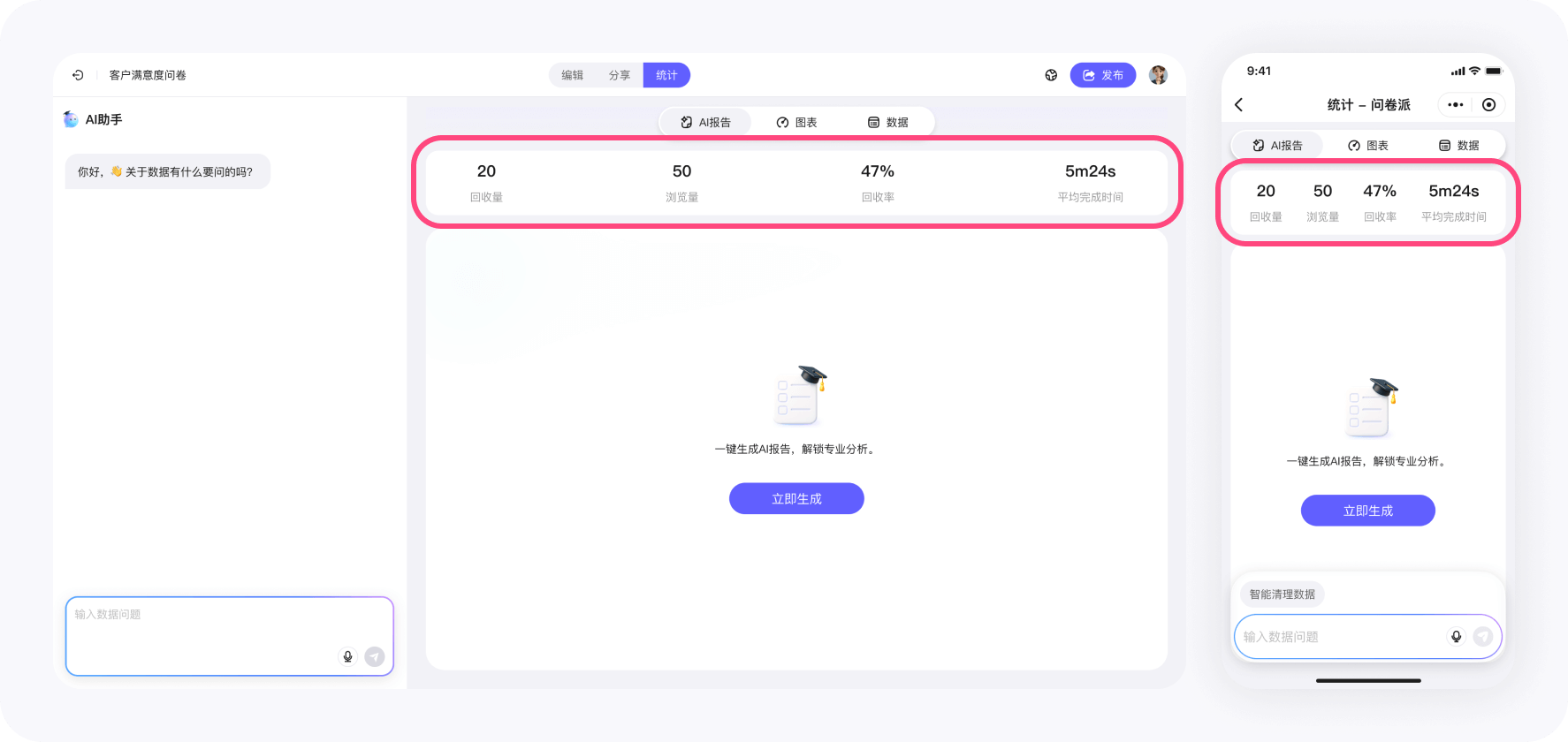
These help you judge:
- Whether collection is progressing smoothly
- Whether the flow has obvious friction
- Whether quality appears stable
The analytics page supports multiple views:
- AI Report: an AI-generated analysis summary based on current data
- Charts: distributions, proportions, and ratings by question
- Data: row-level raw responses
Each view serves a different purpose. Switch freely based on what you need right now.
In the Data view, each row represents a response.
You can:
- Search by ID or content
- Open a single response to view full answers
- Mark responses as valid or invalid
- Filter to view only valid / invalid responses
These are used for necessary checks and cleanup before deeper analysis.
When you need to use data outside Wejot, you can export directly from the analytics page.
The export entry is in the top-right of the Data view.
Choose a survey version
A survey can have multiple versions across edits and publishing.
Before exporting, choose the survey version:
- Versions are listed by time
- Each version corresponds to the question structure at that moment
- Exported data strictly matches the chosen version
This prevents inconsistencies when question structure changes over time.
Choose an export format
Supported formats include:
-
Raw data (CSV)
For direct review and processing in Excel or Google Sheets. -
Coded data (CSV)
Options are encoded numerically for statistical analysis. -
SPSS data (SAV)
For SPSS and other statistical software. -
Attachments export
If the survey includes upload questions, export files separately.
Choose the format that fits your downstream workflow.
Export process and download
After confirming version and format, click Start download:
- The system packages data in the background
- Progress is displayed during packaging
- A download link is generated when ready
If direct download is not supported in your environment, copy the link and download in a browser.
You can think of the analytics page as:
The transition area from “collecting responses” to “analyzable data”.
Here you can complete:
- Collection status checks
- Basic data inspection
- Invalid response handling
- Export for delivery
Whether you analyze inside Wejot or in external tools, this is usually where you start.