Custom Parameters
Important: Custom parameters are a VIP feature and require upgrading to the VIP plan.
Custom parameters let you carry your own tracking information on the answer link. For example, if you want to tell which channel a response came from, or record each respondent’s user ID, WeJot saves that information with every matching response.
Common examples:
| Parameter | Display name (column header) | Example use |
|---|---|---|
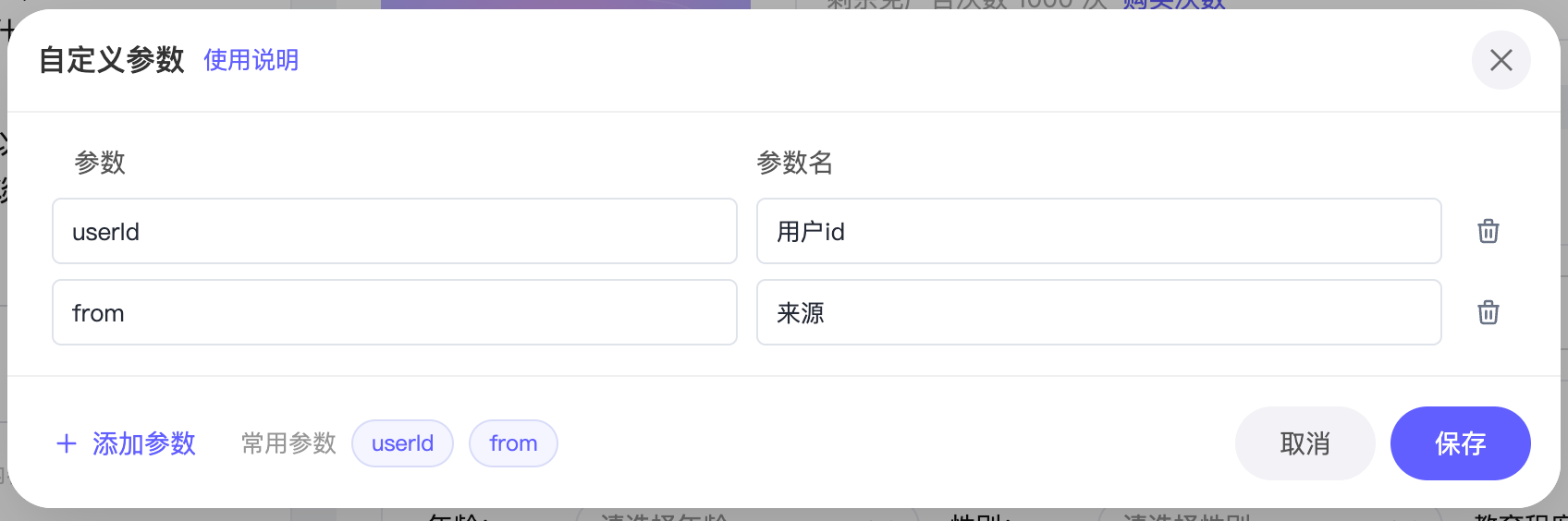
userId | User ID | Record the respondent’s user ID |
from | Source | Distinguish channels such as wechat or qq |
After configuring once, the whole flow works automatically:
- Append the configured parameters to the answer link;
- Respondents open the link and complete the survey normally;
- WeJot saves the parameters with each response and shows them under the display name in statistics and CSV export.
Step 1: Configure parameters
-
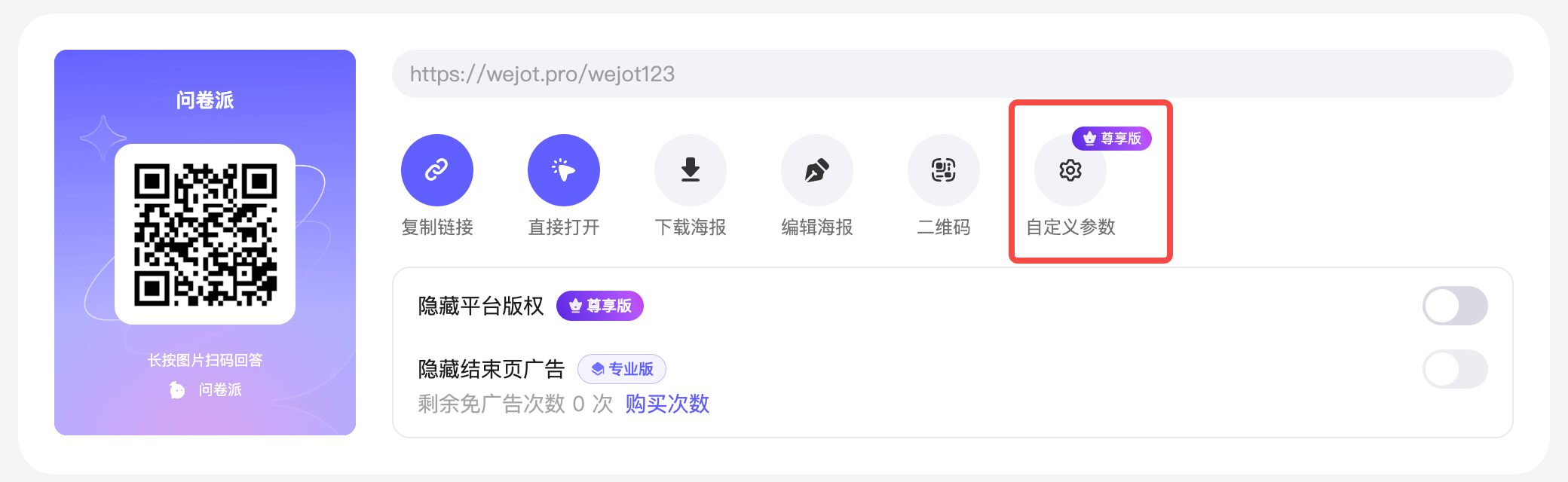
Open a published survey and click Share to open the share panel.
-
Click the Custom Parameters entry in the share panel.
Accounts without the VIP plan can also open and view the configuration dialog.
-
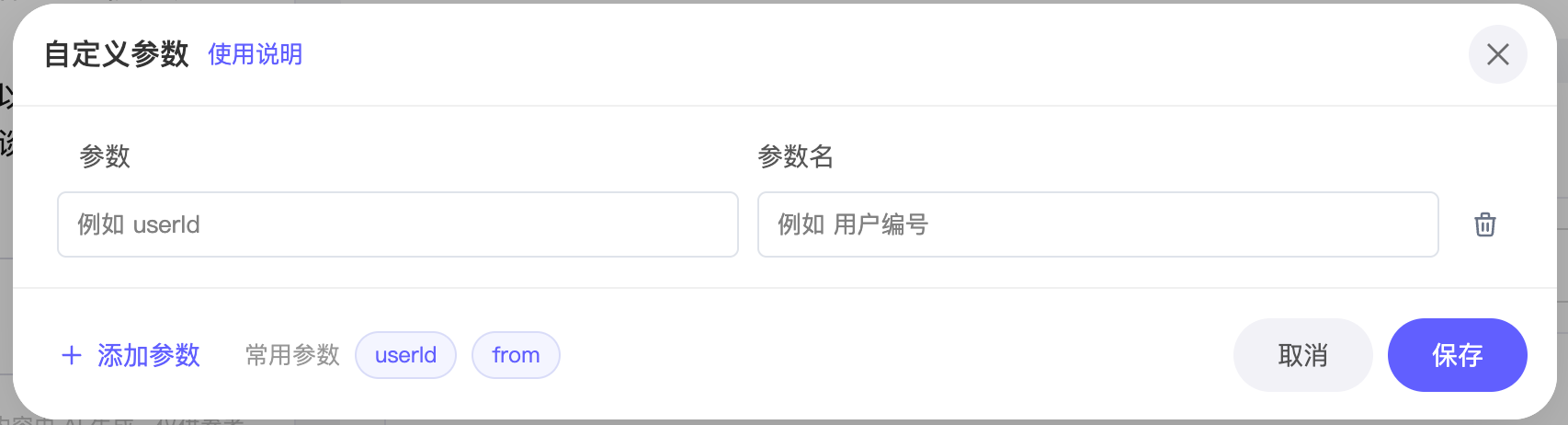
Add parameters in the dialog:
- Add manually: click Add Parameter, then fill in Parameter and Display Name;
- Add quickly: click the userId or from tag below, and the parameter and display name are filled in automatically;
- A parameter key must start with a letter and contain only letters, numbers and underscores, up to 64 characters;
- The display name is used as the column header in statistics and CSV export. If left empty, the parameter key is used automatically;
- System fixed parameters such as
s,c,tokenanddevicecannot be configured; - A survey can have at most 50 parameters.
-
Click Save. The configuration takes effect immediately. Saving overwrites the whole list: parameters that are no longer present are removed.
If the account is not on the VIP plan, clicking Add Parameter, a common parameter tag or Save will show the upgrade prompt, and no parameters will actually be added or saved.
Configuration is stored per survey code, so different versions of the same published survey share one set of parameters.
Step 2: Pass parameters in the answer link
After configuration, copy the survey address from the share panel and append the custom parameters you want to track as URL query parameters. For example, in https://wejot.pro/wejot123, wejot123 is the survey identifier — simply append your parameters:
https://wejot.pro/wejot123?userId=20230001&from=wechatWhen appending, note the following:
- Keep the copied address unchanged and append parameters at the end; if the address already contains a query string (
?), join additional parameters with&; - Only parameters configured for this survey and validated by the system are recognized and saved; unconfigured keys are ignored;
- Values may be empty strings; each value can be at most 1024 characters;
s,c,tokenanddeviceare system fixed parameters. Do not add them to the link manually or configure them as custom parameters;- Both normal survey submissions and AI interview progress saves/final submissions carry the configured parameters automatically.
Step 3: View parameters in statistics and export
Once configured, the survey statistics automatically include one column per parameter:
- Column title = the display name you configured;
- Column order = the order of parameters in the configuration list;
- Cells are empty when a response has no value for that parameter.
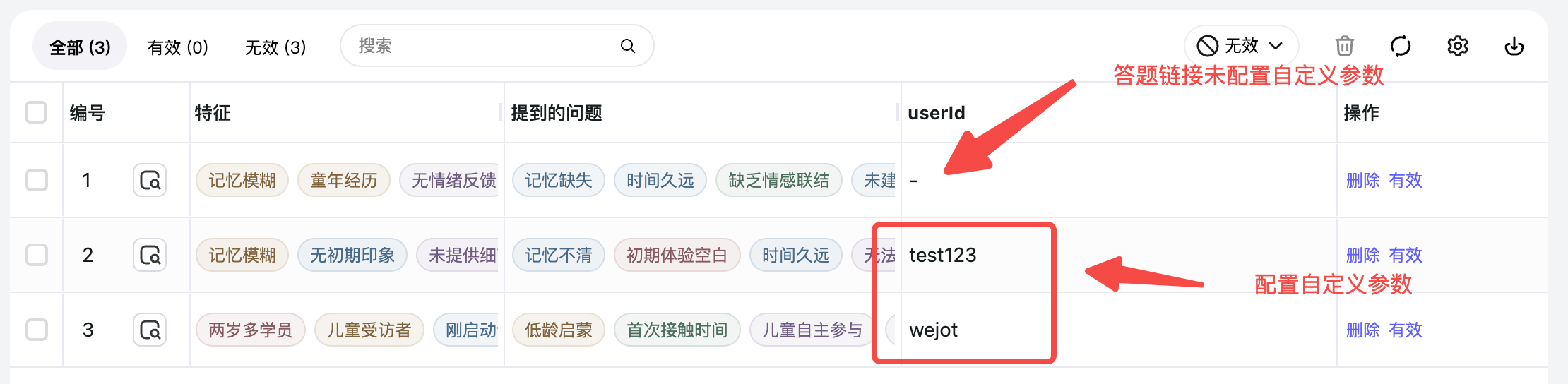
CSV export uses the same display names as column headers.
FAQ
Do respondents need to do anything extra after I configure parameters?
Why don’t I see my parameter columns in statistics?
What parameters can I use?
s, c, token and device, you can use any key that follows the rule: starts with a letter, contains only letters, numbers and underscores, up to 64 characters. userId and from are common examples provided by the platform; you can also configure your own keys.