Team Collaboration
Research doesn’t have to be a solo effort — one team, one shared resource pool, one common workspace.
Team Collaboration extends Wejot from a personal AI research tool into a shared team workspace: you can create your own team, invite members in, centrally manage permissions and resources, and put an entire research group into the same space.
Where you’ll see it
-
Personal vs. team switcher
Right after signing in, open the switcher at the top of the left sidebar and you’ll see My Workspace and My Teams side by side — one click to switch. From here you can tell your role in each team at a glance via the Team Manager / Member tag next to it; once you switch, your current surveys, file library, and AI sessions all follow you into that team.

-
Team Management
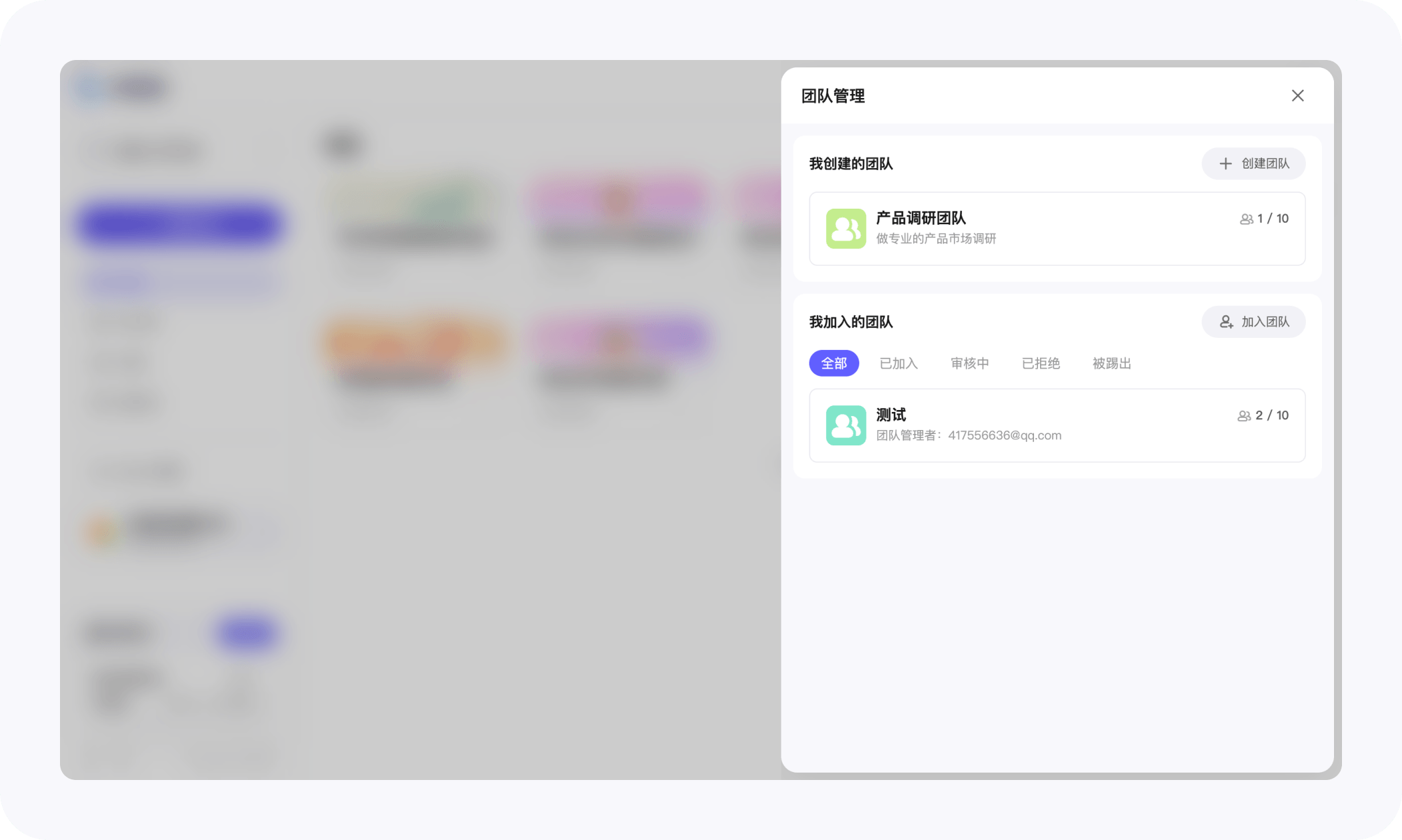
Click Manage inside the switcher popover to open the team management list. You can see both Teams I created and Teams I joined, so every team you’re related to is in one place.
-
Team Details
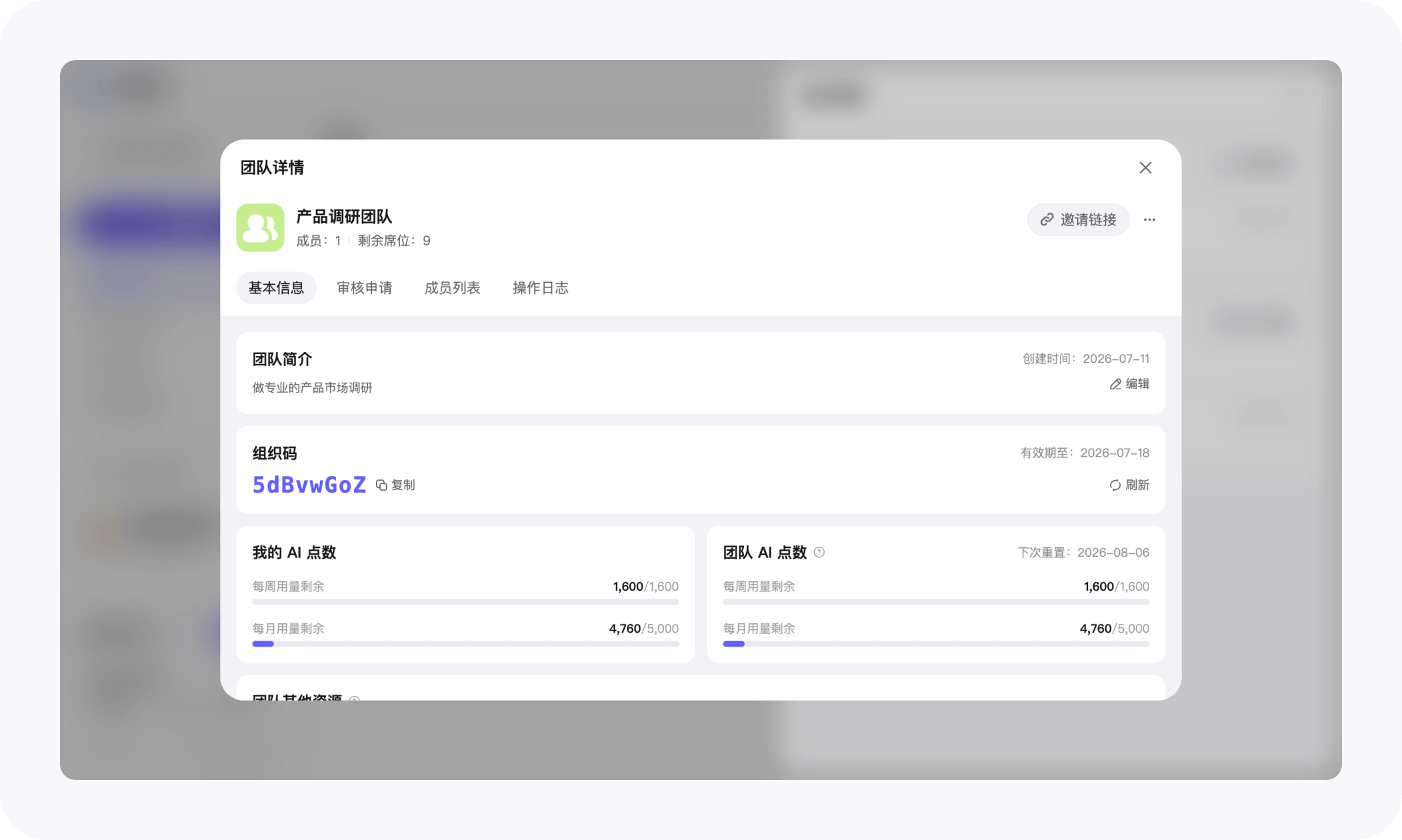
Open any team to enter its detail page, where you can get to know and manage the team through four entries:
- Basic Info — see the team’s name, description, and avatar; this is also where you edit team info and copy the organization code / invite link.
- Pending Requests — every incoming join request lands here, and you can approve or reject them one by one, setting each member’s credit quota as you approve.
- Members — a team directory: who’s inside, their role, and how many credits they’ve used this week / this month, all in one view.
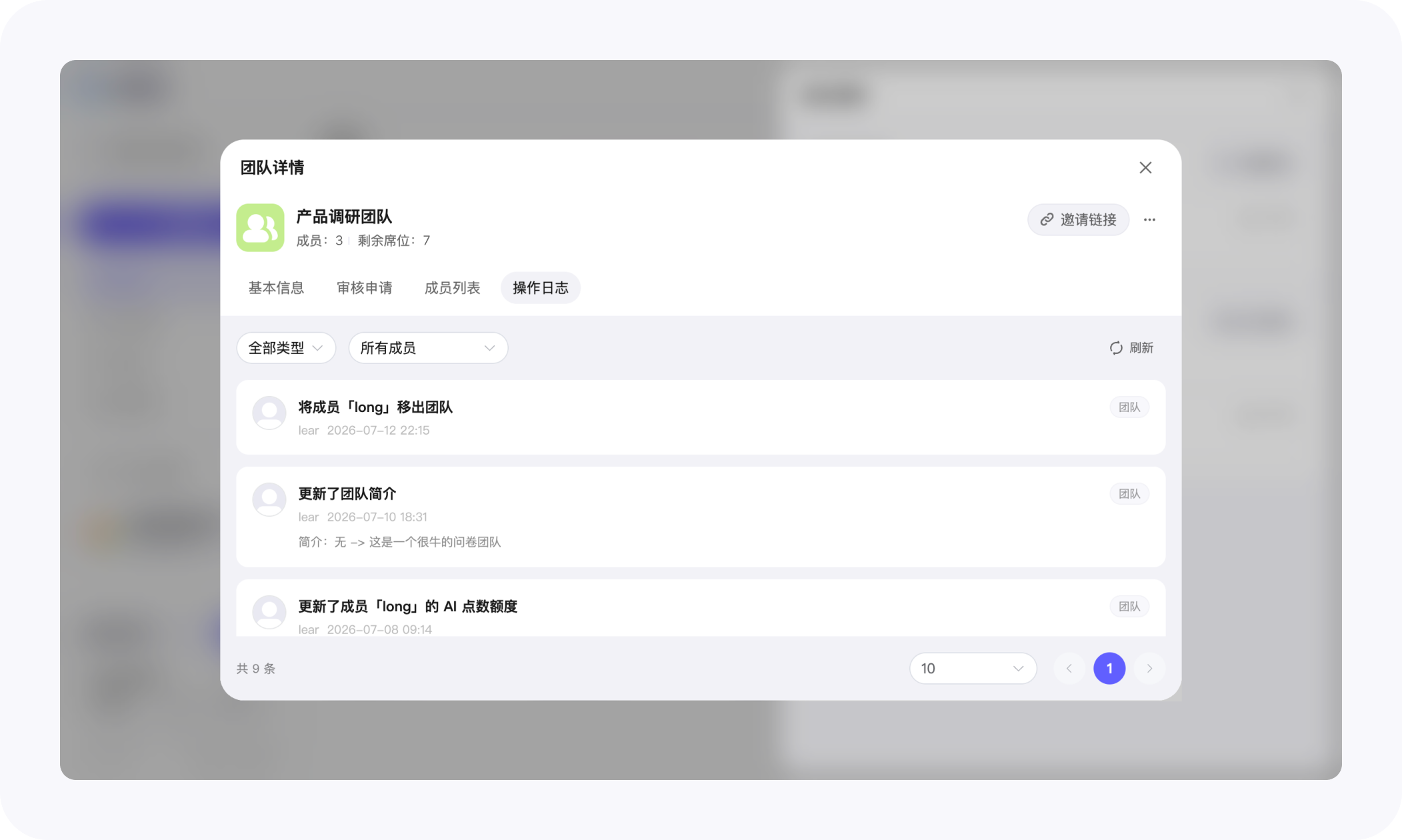
- Activity Log — a ledger of the team: you can trace back who did what and when.
What you can do in a team
Create a team & invite members
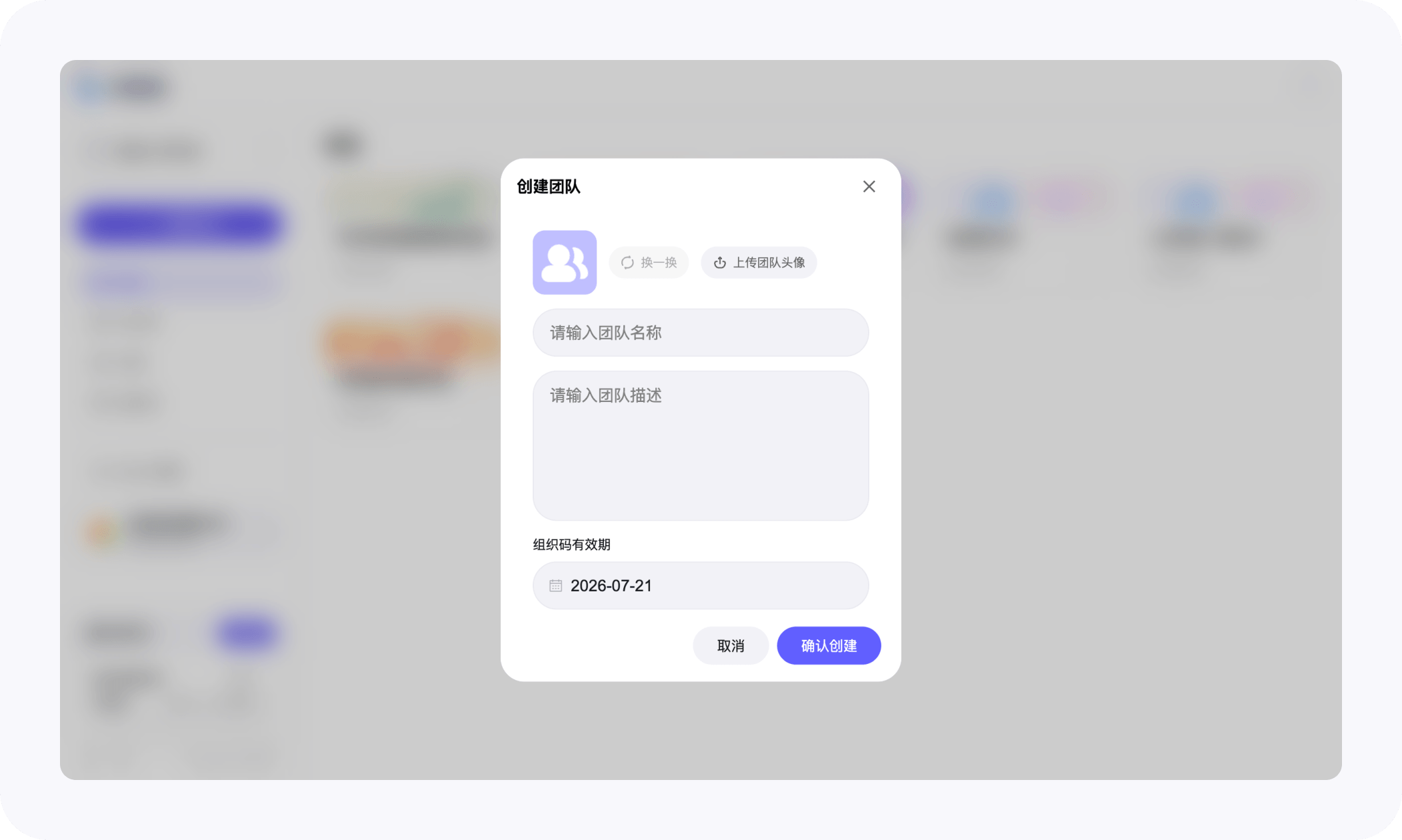
- Give the team a name, a short description, upload or pick a team avatar — that’s it, the team is created.
- Every team gets an organization code and an invite link automatically; one click to copy and share with teammates.
- The code has an expiration (up to 1 month) and can be refreshed anytime; once refreshed, the old code stops working immediately.
- New members using the code enter a Pending state and wait for a team manager to approve.
Review & manage members
- Pending requests show a red dot on the Pending Requests tab; managers approve or reject them one by one.
- When approving, you can set a weekly / monthly credit cap for that member so no single person drains the whole team’s quota.
- You can adjust caps, remove members, or (as the owner) dismiss the team — irreversible, with a double confirmation.
Share resources, use them together
- Surveys, files, and AI sessions inside a team all belong to the team space and are visible to every member.
- AI credits, attachment storage, and ad-free uses are all deducted from the team owner’s account.
- Every member’s usage and the team’s total usage are visualized per week / month, with the next reset date shown.
Activity Log
-
Every key change in the team — avatar updates, joins / removals, quota adjustments, code refreshes — is written to the activity log.
-
You can filter by actor; desktop paginates, mobile loads more on scroll. Trace back “who did what and when” whenever you need to.
Who can do what
Each member’s visibility and permissions depend on their role:
- All members — use the team’s surveys / files / AI sessions and see their own credit usage;
- Team managers — additionally: update team info and avatar, review join requests, manage member quotas, view the team’s total usage and activity log, and refresh the organization code;
- Team owner — additionally: dismiss the team.
The interface automatically hides or greys out actions a member doesn’t have permission for, so nobody sees an option they can’t use.
How resources add up
The most common question we get in teams is “whose account do the AI credits come from?”:
- AI usage, attachment uploads, and ad-free uses inside the team space are all deducted from the team owner’s account.
- The “weekly / monthly remaining” a member sees is their own allowance within the team quota, not the team’s grand total.
- Managers can see each member’s actual usage in the member list, and set weekly / monthly caps per member as a secondary quota.
One team subscription covers the whole research group — no more separate memberships for every member.
Little niceties
- Consistent across desktop and mobile — every team capability works on both; mobile is heavily adapted for smaller screens (bottom drawers, horizontally scrolling tabs, more compact button labels).
- Avatar cropping — whether you hover on “Change avatar” on desktop or open the bottom menu on mobile, uploads all go through the same avatar cropper page.
- Invite link one-click join — opening an invite link jumps straight into the join flow, no manual code entry needed.
- Pending-request badges — when a manager opens a team’s detail page, the Pending Requests tab shows a numeric red dot with the count.
- Confirm-twice for dangerous actions — dismissing a team, removing a member, or rejecting a request all pop a confirmation, so you don’t misfire.
Who it’s for
If you’re:
- a research squad that wants to share a template library and pool a single AI quota;
- a market or user research team that wants every study to live in one searchable space;
- a client-plus-consultancy joint project that wants a single entry point and centralized member permissions;
- a teaching or lab team that wants students / TAs to use AI tools within a controlled quota;
then create a team, move your research in, and let Wejot become the shared research floor for the whole team.
How it connects with other capabilities
- With Clarify — the team shares one already-clarified research intent, so nobody has to re-align from scratch.
- With AI Helpers — analysis results settle inside the team space, so everyone can reuse the same “helper crew” output.
- With Skills Management — which Skills are enabled or disabled in the team can be centrally controlled, so every member’s AI capability boundary stays aligned.
Team Collaboration isn’t just pulling multiple people into the same page — it puts research context, AI usage, and member permissions all into one shared floor, so a research team can truly “work side by side”.