File Library
Every file you produce in an AI conversation lives in the same place — no more “where did that go” after the chat ends.
The File Library is Wejot’s built-in file settling space: everything you upload, everything the AI generates for you, and every asset your teammates have touched all flow in here automatically. You can search them, filter them, and send them right back into a new AI conversation.
Where you’ll see it
-
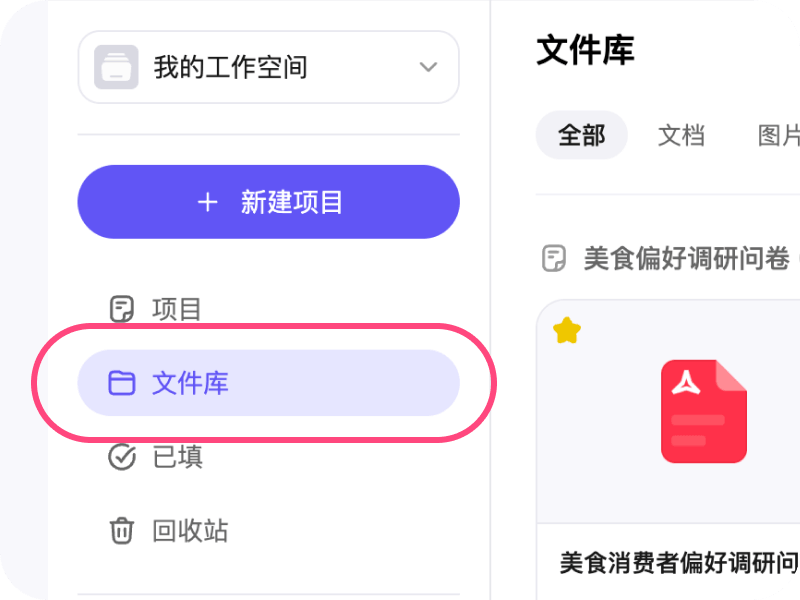
“File Library” in the workspace sidebar
Open your workspace and you’ll find File Library in the left tab bar, right next to Surveys / Completed / Trash. Click it and you’re in the full view of every file you own, with a free switch between grid and list layouts.
-
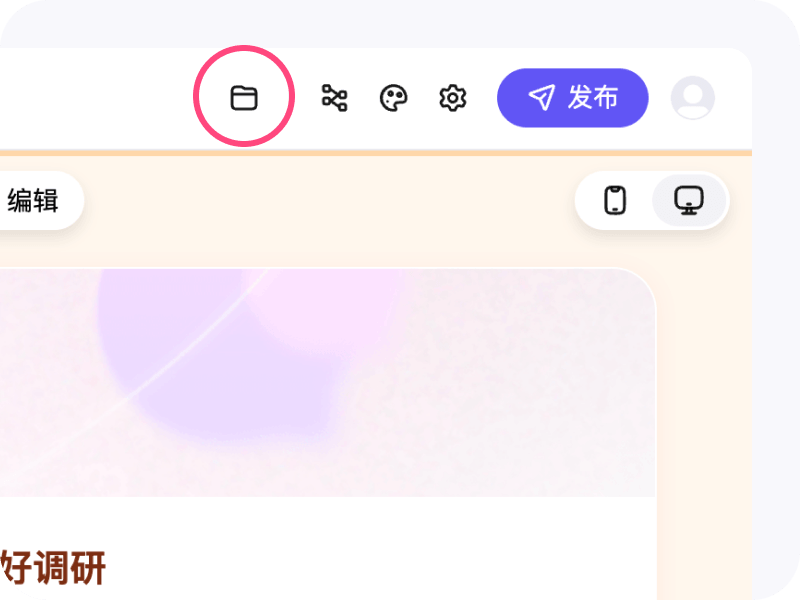
“All files in this project” from a chat page
On any chat detail page, look at the top-right — you’ll see a folder icon. Click it, and an All files in this project popover opens, letting you browse everything uploaded or generated in this project without leaving the current chat.
What you can do in the File Library
Many ways to put files in
- Drag or click to upload — drop a file into the chat, or click
+to upload; the file lands in the library automatically. - From AI output — charts, reports, exported tables and other artifacts the AI generates for you also get filed away here.
- Many file types — documents (PDF, Word, etc.), images, code files, spreadsheets, and more all fit — you don’t need to categorize by hand; Wejot sorts by extension and file type for you.
Find what you need fast
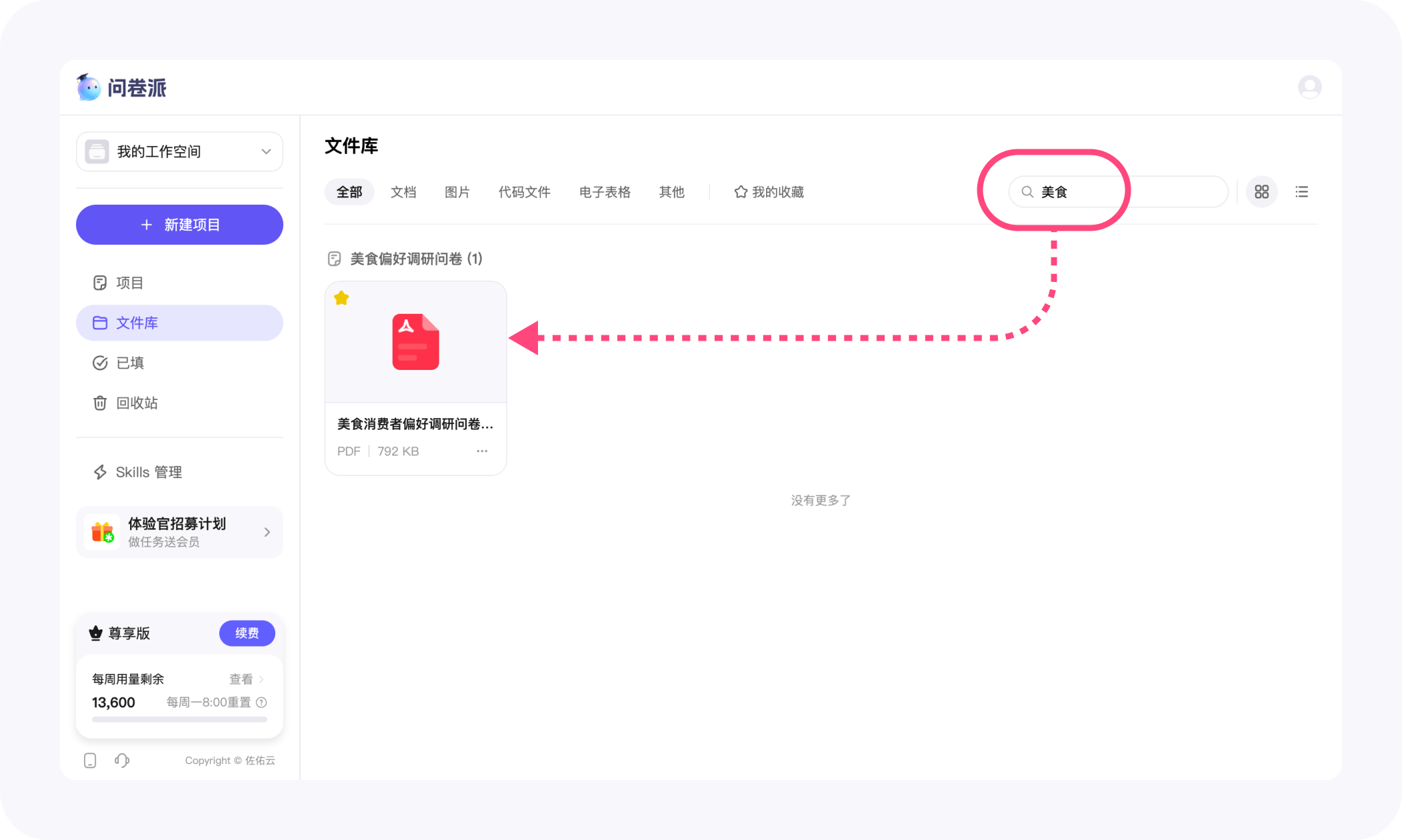
- Search — type keywords right in the search box; no need to press Enter, matches show up as you type.
- Category filters — one tap on the top tabs to jump between All / Documents / Images / Code / Spreadsheets / Others; the type you want stands out immediately.
- Favorites only — switch to My Favorites and only the files you’ve starred are shown.
- Grouped by time — files are grouped by Today / Yesterday / Monday / … by default, so recent work is obvious.
- Grid vs. list — grid view for a visual glance (thumbnails and type icons, images preview in original form); list view for denser info.
Actions on a single file
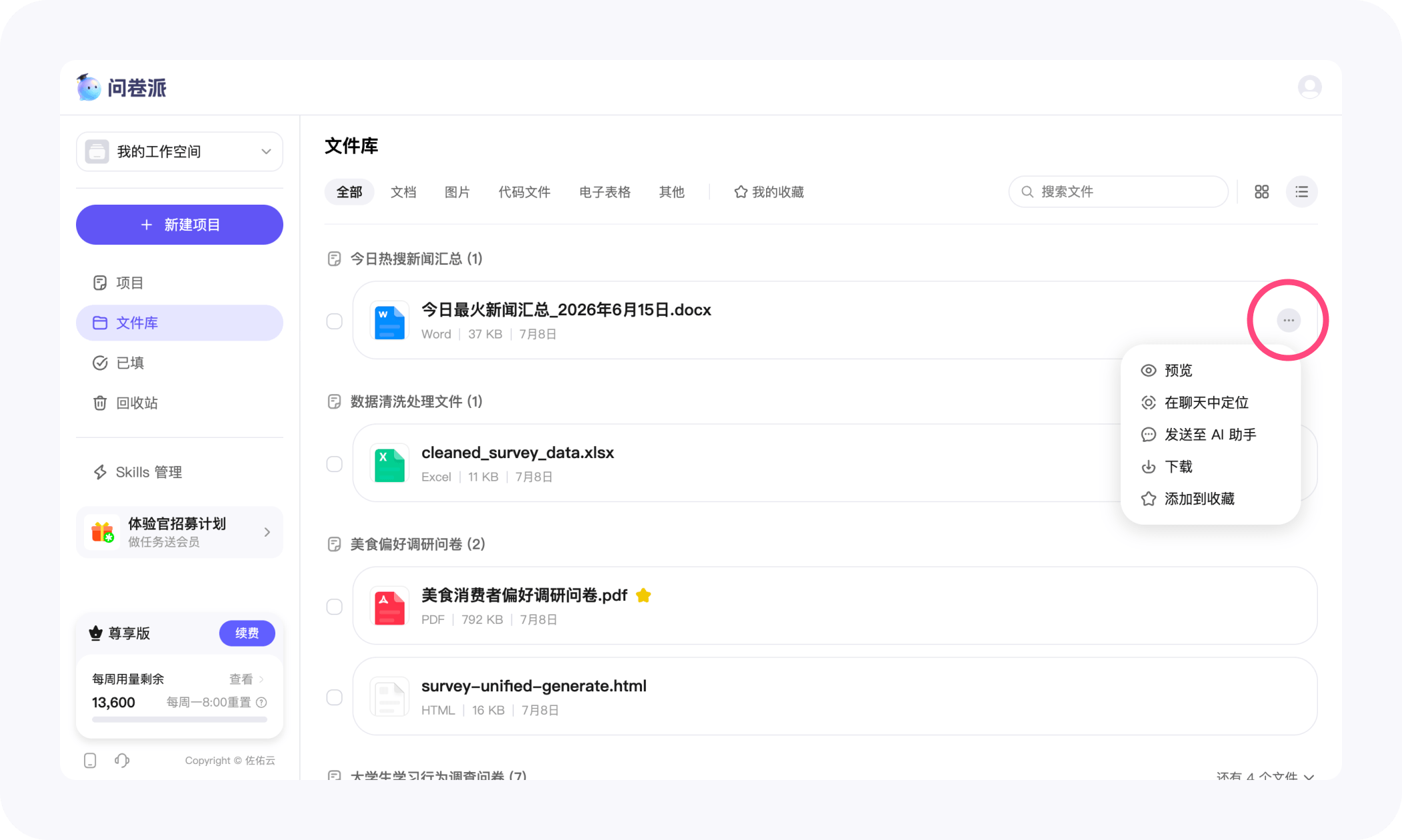
Every file supports:
- Preview — open the image or document directly.
- Locate in chat — jump back to the conversation it first appeared in.
- Download — one at a time, or check multiple for a batch download.
- Send to AI — bring the file straight into a new conversation without re-uploading.
- Favorite / Unfavorite — star what matters so it’s easy to find later.
- Delete — remove files you no longer need from the right-click menu.
Batch handling
Want to grab everything from today or a category in one go? Check Select all, click Batch download — everything’s in one bundle.
File Library inside a team
Switch to a team workspace and open the File Library — what you see is the entire team’s shared view:
- Files uploaded by teammates or generated by the AI are visible to you and everyone else;
- With Send to AI, you can take an existing team file straight into a new conversation, no need for everyone to re-upload;
- The attachment storage here comes out of the team’s allowance (see Team Collaboration).
Personal and team spaces are two independent file views — when you switch workspaces, the library follows you into the corresponding one.
Little niceties
- No re-uploading — going from “File Library → Send to AI” to bring an existing file into a new chat is one of the most-used actions here.
- Original-image thumbnails — image files use the original as their thumbnail, recognizable at a glance.
- Responsive grid — the grid layout adapts from 2 to 8 columns based on your window width, filling wide screens comfortably.
- “No more” / “Loading…” — scroll pagination shows clear loading states so you never get lost in a long list.
- Combine favorites with filters — check “My Favorites” inside a category to zero in on your key assets.
When to use it
- Settle research assets — interview recordings, references, raw data all uploaded to one place, ready when the AI analyzes them;
- Archive reports and outputs — reports, charts, and slide material the AI generates settle together, easy for you to re-edit or share;
- Reuse across sessions — the same brief, template, or spec can be referenced across many conversations;
- Team asset sharing — new members instantly see everything the team already has, so they catch up quickly.
How it connects with other capabilities
- With AI Helpers — when a helper crew is churning through mass data, it can pull raw files straight from the library.
- With Clarify — the briefs and references you use in Clarify all settle back into the library for the next round to pick up.
- With Skills Management — Skills like Text Analysis, Data Analysis, and Document Generation all consume and emit files through the library, forming an “in → process → out” loop.
- With Team Collaboration — the library in a team space is shared across members, attachment storage comes out of the team quota, and members no longer have to “pass files around” one by one.
The File Library looks like just a file list, but it’s actually the through-line Wejot uses to connect every asset and every artifact in your research process: nothing you bring into Wejot disappears after one chat — it stays in your space, ready to be picked up by whatever you research next.