Skills Management
Turn your methods and experience into Skills — teach once, reuse forever.
In Wejot, the whole journey from stating a need to generating a survey, analyzing data, and distributing samples is guided by official Skills. Beyond the official ones, you can also install Skills of your own.
Skills Management is the unified place to switch all of them on or off and to extend the set.
Opening Skills Management
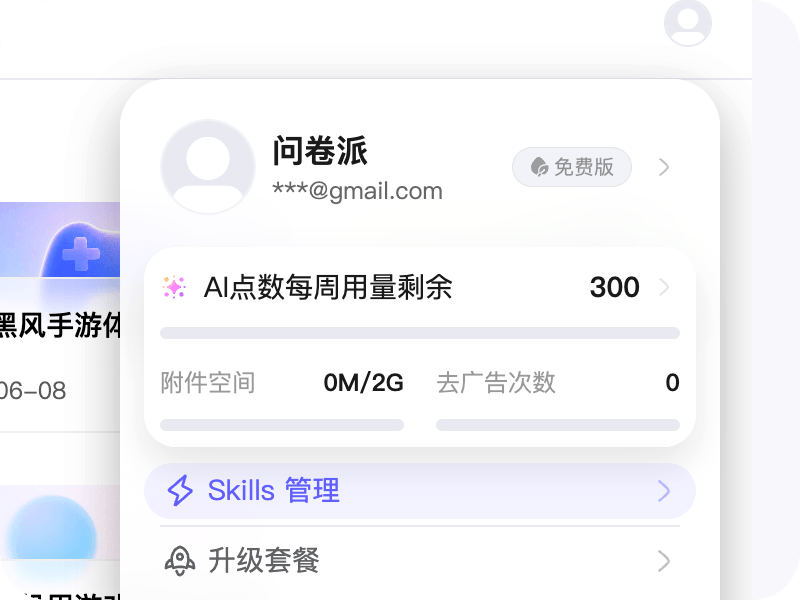
- Open Wejot Web, then go to avatar menu → Skills Management.
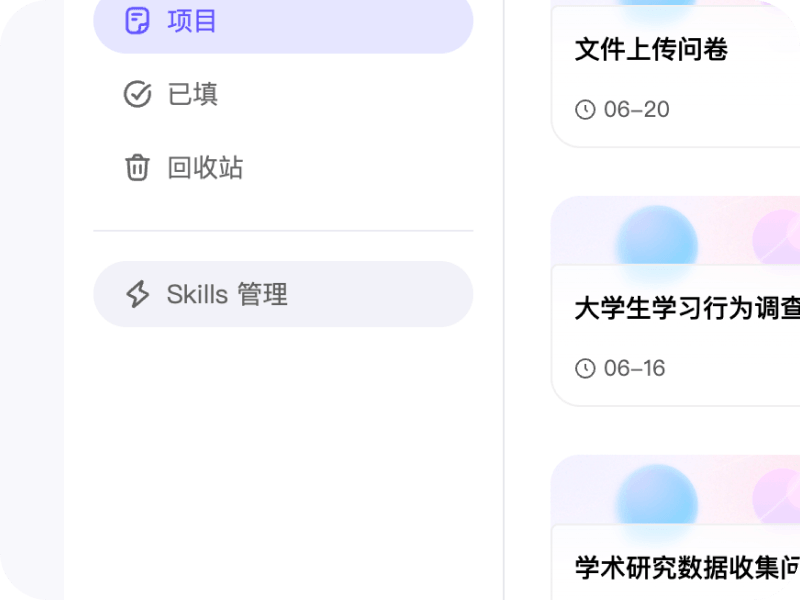
- In Wejot Web, you can also find it on the right-side navigation under Mine → Skills Management.
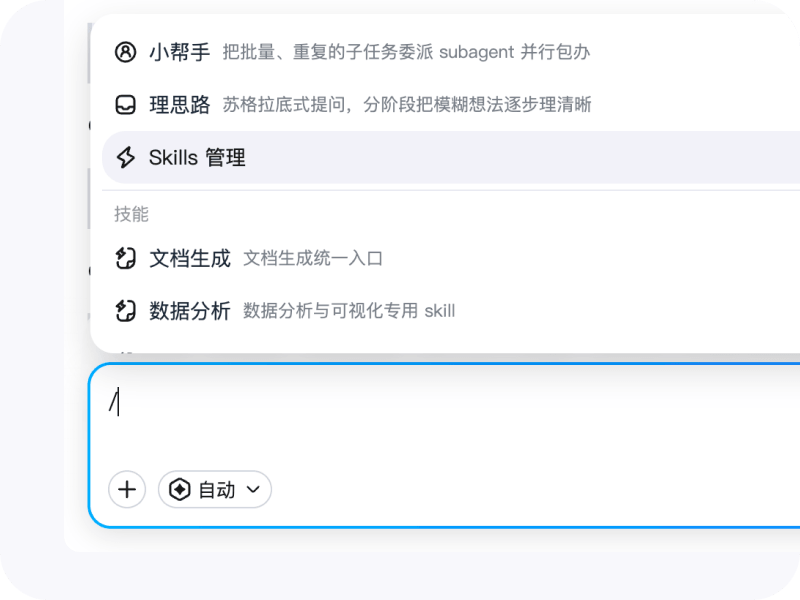
- Or click Skills Management at the top of the
/command menu in the chat input.
What you can do
This is the place to view and manage every Skill:
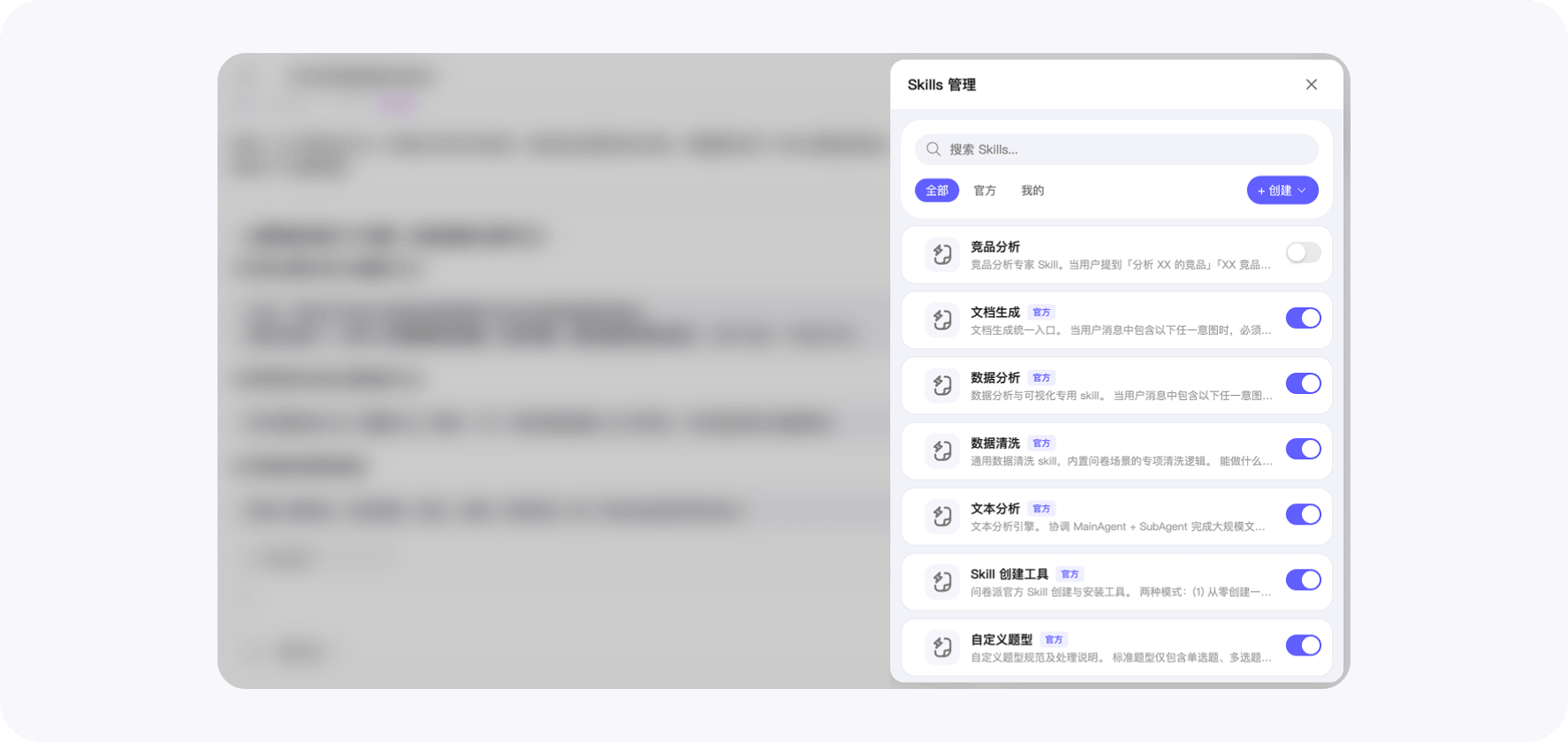
1. Browse the full Skill list
Official Skills — built-in Skills maintained by Wejot. Different Skills cover different professional capabilities, for example:
- Survey Creation — survey generation, title / description editing, item create / delete / edit / reorder / repair, DOM-level customization, and structural validation.
- Data Analysis — produces readable, well-visualized analyses.
- Document Generation — exports analysis results to professional documents.
- Plus Survey Logic, Custom Question Types, Text Analysis, Survey Data Fetch, and more.
Custom Skills — Skills you install by uploading or composing your own.
The search box at the top matches both the localized display name and the description.
2. Enable / disable a Skill
Each row has its own switch. The new state is mirrored across the All list and the detail dialog.
When an official Skill is disabled, the chat assistant stops invoking it. Collapsing the toolset you don’t need keeps the model’s behavior focused.
3. Inspect a Skill
Click any row to open Skill Details:
- Header — name, description, and last updated time.
- Left — the Skill’s file tree (folders expand to arbitrary depth).
- Right — code preview of the selected file with GitHub-light syntax highlighting.
This lets you understand exactly how a Skill works before turning it on.
4. Upload or delete a custom Skill
The Mine tab has a New Skill entry that supports:
- File picker upload, or
- Drag-and-drop into the upload area inside the dialog.
Custom Skills behave like official ones once uploaded: enable/disable, inspect files, and so on. Custom Skills can also be deleted.
How it connects to the / quick-action menu
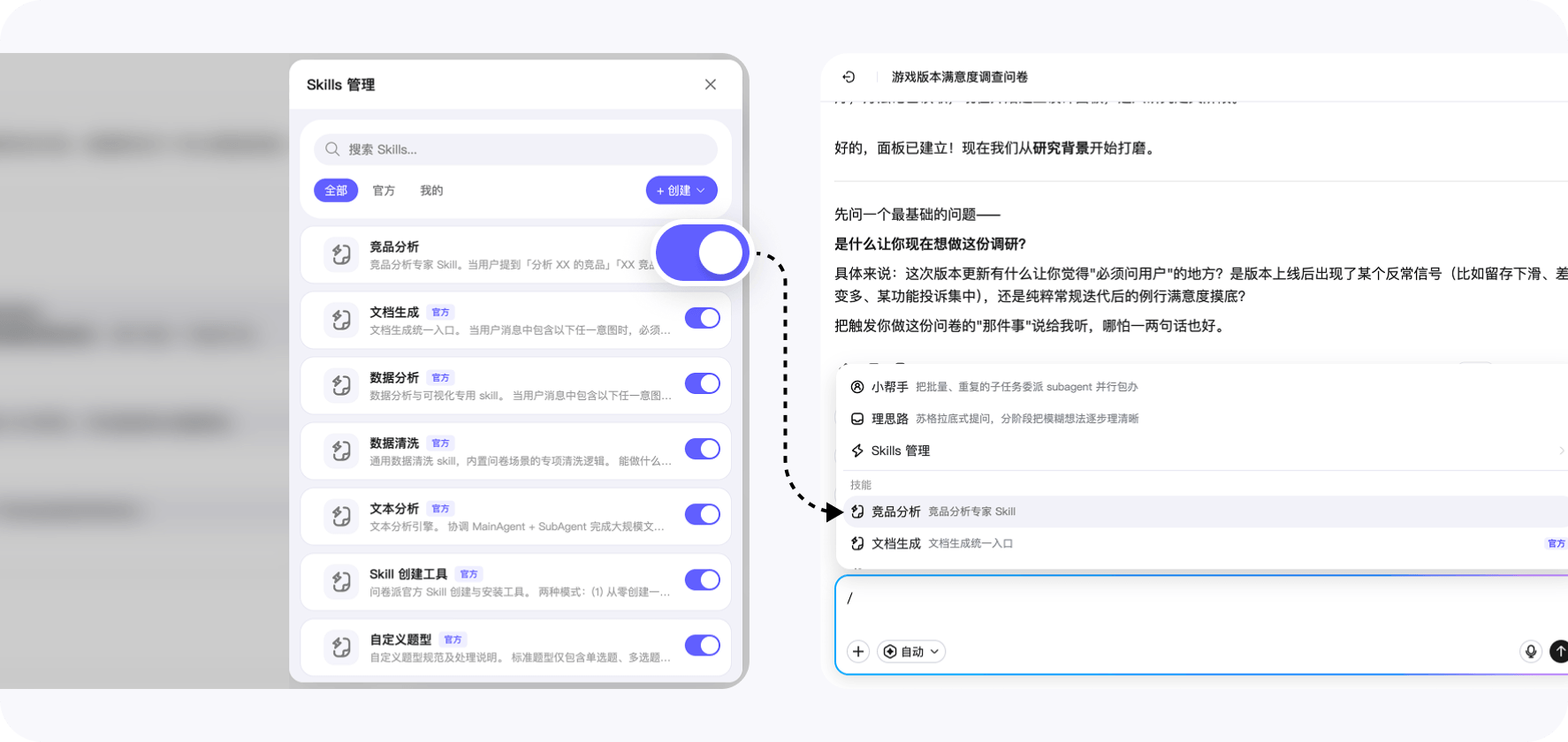
The / quick-action menu in the chat input only lists enabled Skills.
After you upload, enable, or disable a Skill, the menu refreshes automatically.
In other words: to call a Skill quickly during chat, enable it in Skills Management first.
Who it’s for
- Anyone who wants to precisely control AI behavior and keep only the Skills the team really uses.
- Teams with custom templates or domain knowledge they want the AI to apply.
Spotlight: two key official Skills
Two Skills come up most often in real research flows. Both sit in the Official tab and can be toggled independently.
Professional Survey Design (survey-design)
Turns a research goal into a well-structured survey, grounded in established methodology:
- Total Survey Error (TSE) — controls coverage / sampling / non-response / measurement error from the start;
- Construct operationalization — breaks abstract constructs into observable, scorable indicators;
- Tourangeau’s four cognitive stages — evaluates each item along comprehension → retrieval → judgment → response;
- Dillman’s question-order funnel — sequences items general-to-specific, easy-to-hard, to lift completion;
- Market-research module structure — separates study intro / screening & quotas / core research / demographics.
Internally it calls Clarify first to lock the research question and key hypotheses, then maps each one to candidate items — so items don’t drift away from intent.
How to invoke: pick “Professional Survey Design” from the / menu, or just say “Use professional survey design methodology to draft this survey.”
Data Cleaning (data-cleaning)
Runs a quality audit on collected responses before any analysis, surfacing:
- Profile contradictions — self-declared identity attributes that conflict (e.g. “student” with abnormal income);
- Routing & logic anomalies — skipped items still answered, or required items somehow bypassed;
- Low-effort / straight-line answering — same value down a matrix column, junk text, abnormally short response time;
- Duplicate submissions — highly similar responses from the same source within a short window.
The output isn’t a single trust score; it enumerates flagged responses with the reason and translates findings into actions: mark as invalid, tag as needs human review, or produce a cleaning report. Results flow into Data & Insights automatically, so analysis runs on the cleaned sample.
How to invoke: pick “Data Cleaning” from the / menu, or say “Clean this collected dataset for me.”
Boundary with other Skills: Professional Survey Design strengthens the upstream questionnaire; Data Cleaning strengthens downstream trust. The “what does this usable response mean?” step in between is handled by Data Analysis / Text Analysis Skills.